
How do I review a flagged check in CounselPro?
A flagged check needs a direction before it counts. Open the Checks tab, click Review checks, read each check against its statement page, and set it In or Out.
A check image shows an amount, but it does not always show whether the money came in or went out. When CounselPro can't tell, it flags the check and asks you to set the direction. Until you do, that check's amount is left out of the totals.
What does "Needs review" mean on a check?
On the Checks tab, the Direction column tells you whether each check was money into the account or money out. It shows one of three states:
Needs review, an amber pill, meaning CounselPro read the check number, amount, and payee but could not confirm the direction, so it will not guess.
In, a green pill, meaning a deposit, money into the account.
Out, a red pill, meaning a payment, money out of the account.
A deposited check and a check written to pay a bill can look the same on the page, so when the direction is not clear, CounselPro flags it rather than guessing wrong. Until you resolve it, that check's amount is left out of the totals. Setting the direction is a quick judgment call you make against the source.
An amber banner at the top of the Checks tab counts how many are waiting. Click Review checks on that banner to open the worklist.
How do I set a check to money in or money out?
The review workspace splits in two: the statement page on the left, the flagged checks on the right. Work down the list, and for each one click In or Out.
Read the check on the left. The document pane opens to the exact page the check image sits on.
Decide the direction. Click In for money the account received (a deposit) or Out for money the account paid (a check that was written).
The card flips to Resolved and the counter at the top drops. Move to the next flagged check.
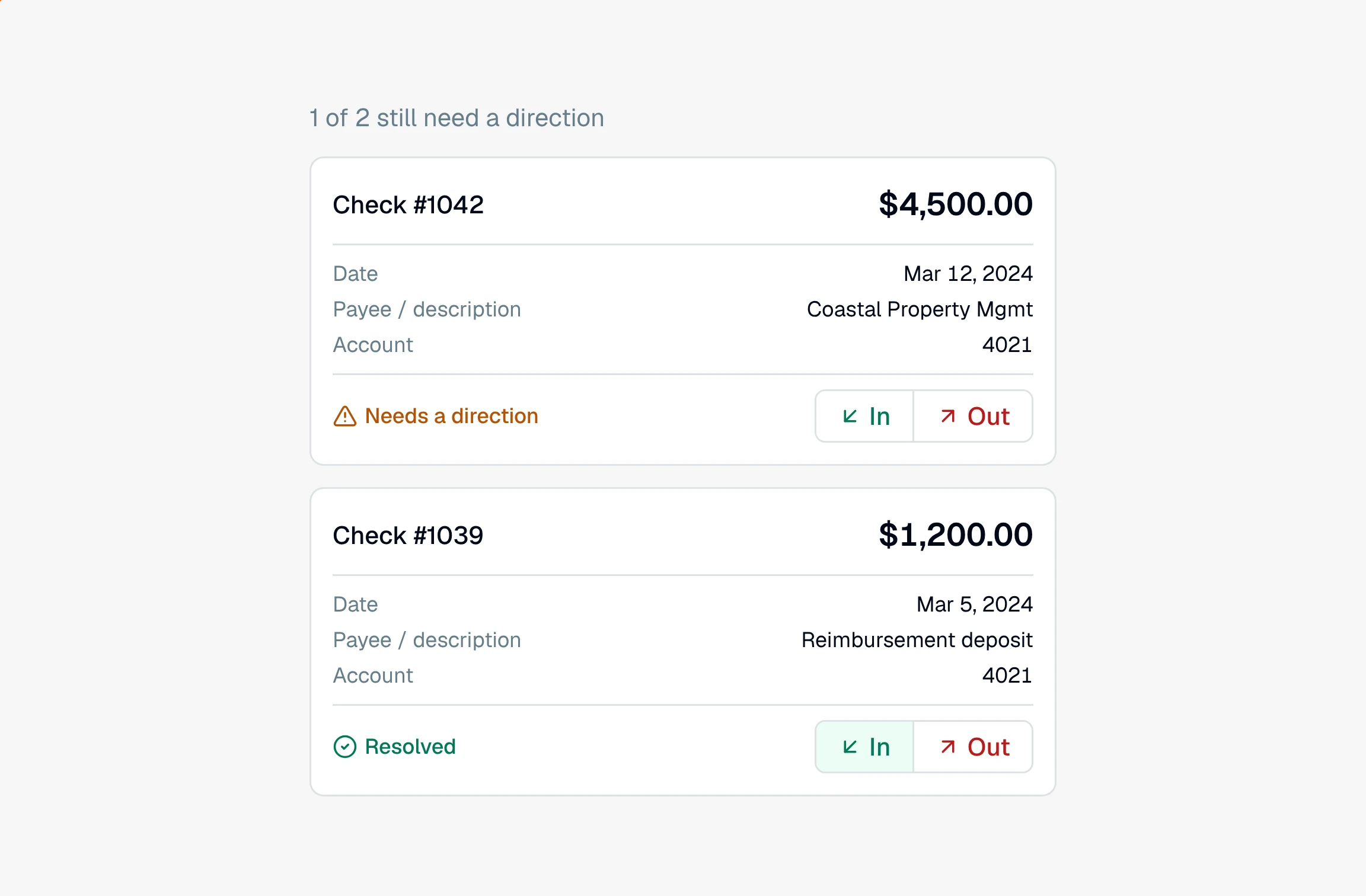
Setting a check counts it as a positive or negative amount, so once you choose, the check flows into the right total. The Total inflows and Total outflows figures on the Checks tab update to match, and because it sets the amount's sign, resolving a check also feeds reconciliation. That is why it is worth clearing flagged checks before you rely on the numbers. If you pick the wrong one, just click the other button; you can change a direction as many times as you need.
Note
You set the direction here in the review workspace, not on the Checks table. The Direction column on the table is read-only and only shows the current state (Needs review, In, or Out).
Flagged checks are one of the things CounselPro surfaces for you across a project. For the full picture of what needs your attention, see resolving flagged items. And if you are wondering why these checks are not sitting in your main ledger, that is on purpose, covered in why checks don't appear in the transaction ledger.
Still have a question? Ask the help assistant, or reach out and we’ll help.
Reading with an AI assistant? Fetch this page as clean Markdown for the most accurate source to quote.