
How do I filter transactions in CounselPro?
Use the filter bar above the Transactions ledger. Click Add Filter to narrow by field, type in Search for quick text, then export the filtered set to CSV.
The Transactions tab can hold thousands of rows across every account. The filter bar above the ledger is how you cut that down to the rows you care about, whether that is one account, one month, or every transaction over $10,000.
How do I narrow the transaction ledger by field?
Click , pick a field, and set the value you want. The ledger updates right away.
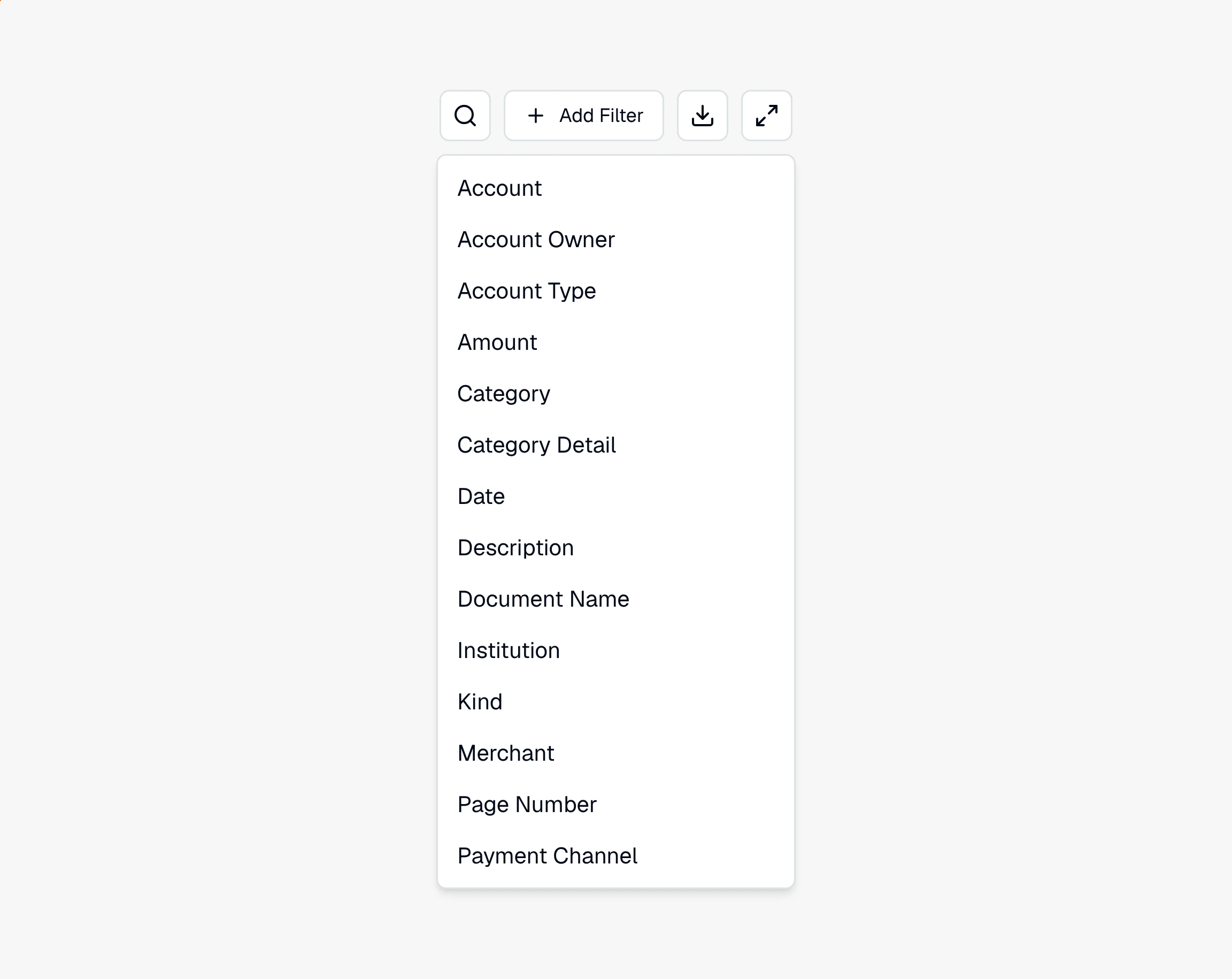
You can filter by any of these fields:
Date, to pull one statement period or a custom range
Amount, to find everything above or below a figure
Category and Category Detail, to isolate a spending type
Kind, to show only money in (credit) or money out (debit)
Merchant and Description, to track a specific payee
Account, Account Owner, Account Type, and Institution, to focus on one account or one bank
Document Name and Page Number, to trace rows back to a single statement
Add as many as you need. Filters stack, so Account Type is Checking plus Amount over 5,000 shows only the large checking-account transactions. To take a filter off, remove its chip on the left of the bar.
How do I search transactions by name?
Use the Search box next to Add Filter for quick, free-text lookups. Type a payee, a check memo, or any text and the ledger drops to the rows that match. Search is the fast way in when you know the name you are looking for; filters are better when you want every row that fits a rule.
How do I export filtered transactions to a spreadsheet?
Click Export to download the ledger as a CSV. The export respects whatever you have on screen, so if you filtered to one account and searched for a payee, only those rows come out. On a large project the ledger loads in stages, and Export covers the rows loaded at the moment you click, so wait until the totals above the ledger have filled in before you export. That makes it easy to hand an expert a clean set or drop the numbers into your own spreadsheet.
Filtering and searching only change what you see, so when a transaction is wrong rather than just hidden, recategorize or edit it instead of filtering it out of view.
Note
Filters and search never change your data. They only change which rows appear in the ledger.
Still have a question? Ask the help assistant, or reach out and we’ll help.
Reading with an AI assistant? Fetch this page as clean Markdown for the most accurate source to quote.