
How do I review and fix a cycle that doesn't reconcile?
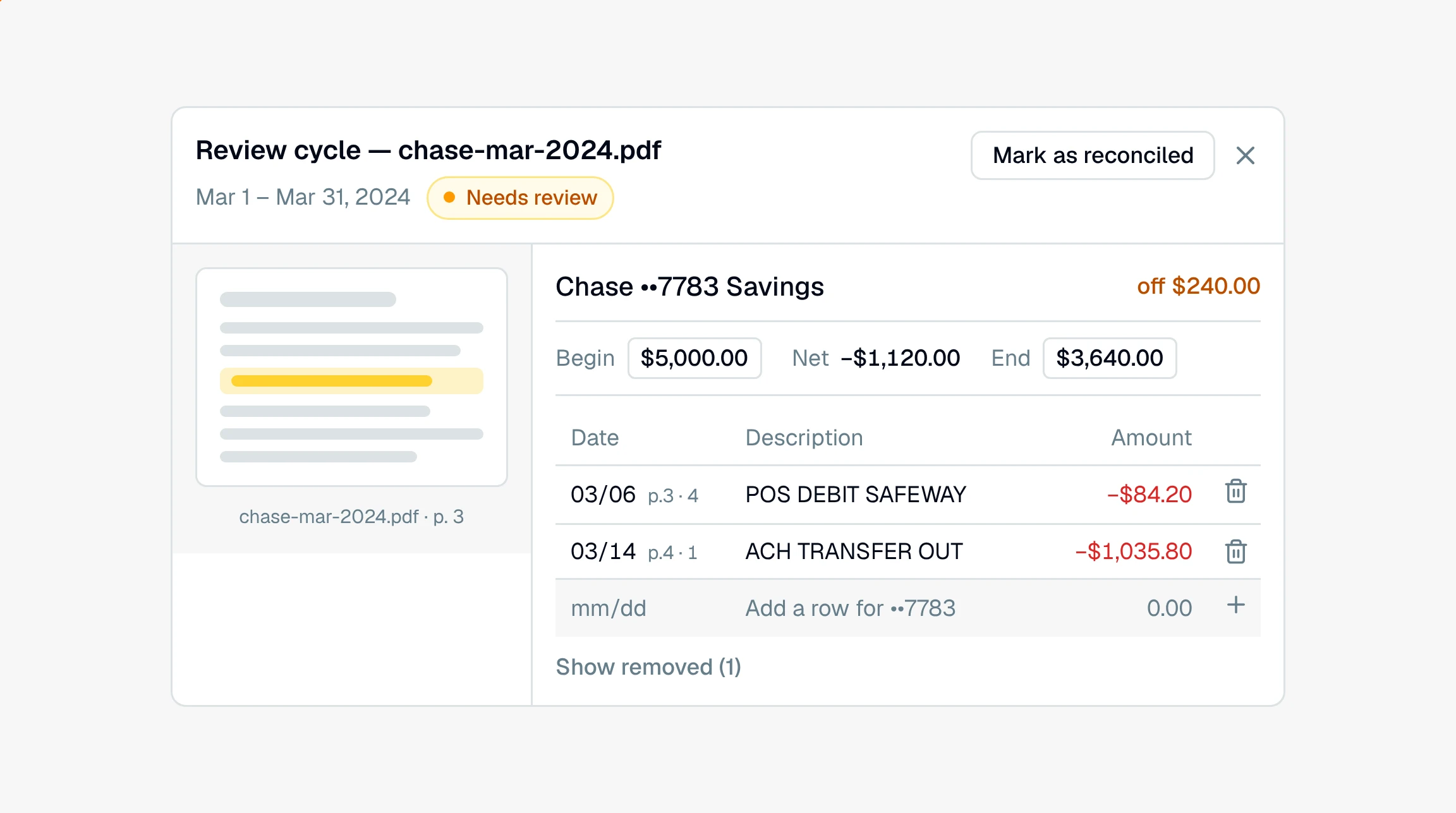
Click Review & fix on a flagged cycle to open it beside the statement PDF. Remove duplicate rows, add missing ones, or fix a balance; the gap updates live.
When a cycle needs review, you fix it in a workspace that puts the numbers next to the source. Click Review & fix on the flagged cycle to open it.
How do I open the reconciliation workspace?
There are three ways in, and they all land on the same split view:
Review & fix on a cycle that does not tie out, on the Reconciliation tab. This is the usual route.
View cycle on a cycle that already reconciled. Any cycle opens, not just the flagged ones, so you can read the engine's work against the statement pages before you rely on it.
A click on a covered month in the coverage grid. That opens the cycle that colored the cell you clicked, so an amber month takes you to the cycle that made it amber.
The review workspace
The workspace fills the screen and splits in two:
Left: the statement PDF, opened to that cycle's pages with the relevant page range highlighted, so you are always looking at the source.
Right: the editable rows, one table per account, with the beginning balance, the transactions, and the ending balance. The header shows how far off the cycle is and its current verdict.
Click any transaction's date to jump the PDF to the page it came from. That is the fastest way to confirm a row against the printed statement.
Why are the rows in this order?
The rows are laid out the way they print, so the table on the right and the page on the left read top to bottom together. CounselPro sorts by page first, then by where the row sat among the rows on that page. Any row it could not place on a page sorts to the end rather than landing somewhere it does not belong.
A small label sits beside each date, like p.3 · 4, meaning the fourth row printed on page 3. Use it to find the exact line on the PDF instead of scanning the page for a matching amount, which matters when the same figure prints more than once in a cycle.
Printed order is read while a statement processes, so it appears on statements processed in this version. Rows from an earlier run carry no label and sort last. Reprocess the statement and the order comes with it.
The fixes you can make
Most off cycles come down to one of three things. You have a tool for each:
Remove a duplicate or wrong row. If a charge or deposit was counted twice, click the trash icon on that row to take it out. Removed rows tuck into a "Show removed" list, so you can restore one if you pull the wrong one.
Add a missing transaction. If the statement lists a row that is not in the table, use the add-row line at the bottom of that account. Enter the date, a description, and the amount, then click the plus button.
Correct a beginning or ending balance. If a balance was mis-keyed, click the Begin or End figure and type the right number. An account you have hand-edited gets an "edited" tag so you can see what you changed. The Net column is the sum of the rows and updates on its own.
Each edit saves as you make it. There is no confirmation pop-up, so work carefully. If you remove the wrong row, restore it from the "Show removed" list.
Watch the gap close
After every change, CounselPro re-adds the numbers and updates the gap in place. You do not need to refresh. When the beginning balance, the rows, and the ending balance finally agree, the account reads Balanced and the cycle flips to Reconciled.
How do I move to the next cycle without closing the workspace?
Use the previous and next arrows in the workspace header. They walk every cycle the Reconciliation tab lists, in the order it lists them, so next past the last cycle that needs review carries you into the rows below it. You can work a whole project from inside the panel.
The cycle you have open is written into the address bar as ?cycle= and its number. Reload the page and you come back to the same cycle. Send the link to a colleague and they open on the cycle you were looking at, provided they have access to the project. Close the workspace and the cycle drops out of the link again.
When a statement can't balance on its own
Some statements never tie out for a good reason. A pass-through account might print a $0 balance while real money moved through it, so the rows can never sum to the printed figure.
For cases like that, mark it reconciled by hand:
Open the cycle and click Mark cycle as reconciled in the workspace header. If you change your mind, Revert to engine verdict in the same spot puts the automatic result back. You mark one cycle at a time, so a statement with several cycles that cannot balance needs each one opened and marked.
Use this only when you have confirmed the cycle is right and simply cannot be auto-balanced. It records your judgment that the cycle is settled.
Reconciliation is part of the Premier plan and every single project, so the review and mark-reconciled tools appear only on plans that include it. For the concept behind it, see what reconciliation does.
Note
The review and mark-reconciled tools are part of reconciliation, which is on the Premier plan and every single project, so they appear only on plans that include it.
Still have a question? Ask the help assistant, or reach out and we’ll help.
Reading with an AI assistant? Fetch this page as clean Markdown for the most accurate source to quote.