
How do I see total spending by merchant?
The Merchants insight in CounselPro bundles the many ways one business appears on statements into one merchant, so you get a real total, not scattered rows.
The same business rarely appears the same way twice on a bank statement. One store might show up as "The Home Depot," "HOMEDEPOT," and "Home Depot Inc," splitting one real total across three rows. The Merchants insight fixes that.
What does the Merchants insight show?
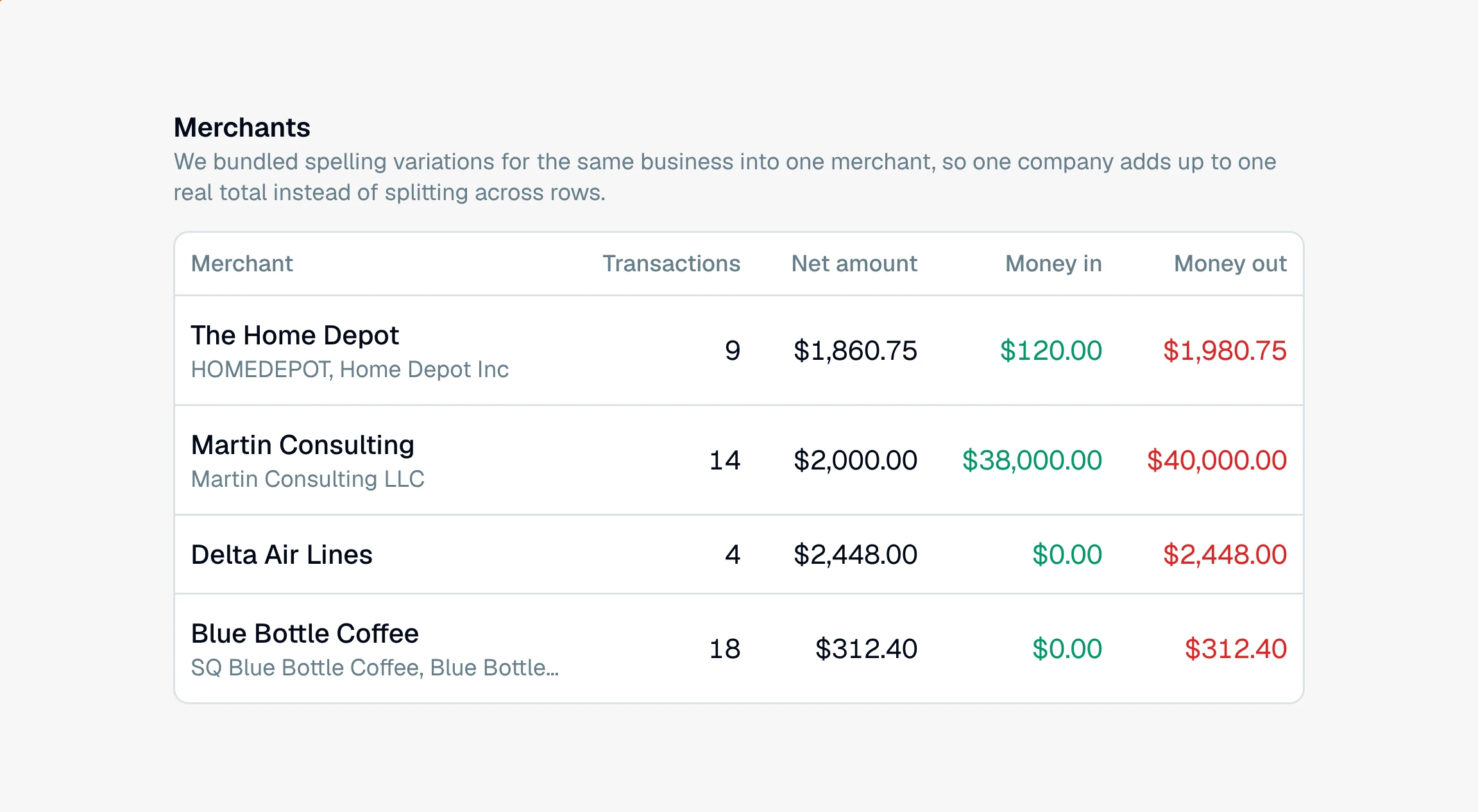
Open the Insights tab and go to Merchants. CounselPro bundles the spelling variations of a business into one merchant, then shows:
Top merchants, a bar chart ranking businesses by their net total, money in or out
Frequency vs amount, a scatter view of how often versus how much
A Merchants table you can sort and scan, with Money in and Money out for each merchant beside the net amount
Money in and money out matter when a payee runs both ways. A business partner who was paid $40,000 and sent back $38,000 nets to $2,000, which looks small. The two columns show the $40,000 and the $38,000.
Click any bar, point, or row to open that merchant and see every transaction behind the total, including the different name variations that were bundled together. You can recategorize or edit those transactions right from there.
Why are different store names grouped into one merchant?
Because they are the same business, and CounselPro only joins names when it can show that. It cleans up each name, strips off transaction prefixes like "ACH debit" or "payment to," and then joins two names when one of these holds:
Same letters and digits. "HOMEDEPOT" and "Home Depot" differ only in spacing, capitals, and punctuation.
Same words once the filler is gone. A leading "The," the word "and," an ending like Inc, LLC, or Corp, and a card reader code in front of the name (such as SQ or TST) are ignored.
A name the bank cut off. "Blue Bottle Coff" joins "Blue Bottle Coffee."
Names that only look alike stay apart. A short name that could belong to two different payees joins neither, because folding one person's payments into another's total is worse than leaving a row out of a group. Transactions with no merchant are left out of this view.
Note
If CounselPro groups two businesses you consider separate, or keeps apart two names you know are the same payee, open the merchant to see the underlying rows and edit those transactions right from the merchant detail.
To total spending a different way, the Categories insight groups by category instead of by business, and Daystrom can total any payee you name.
Still have a question? Ask the help assistant, or reach out and we’ll help.
Reading with an AI assistant? Fetch this page as clean Markdown for the most accurate source to quote.