
How do I remove someone or leave a firm?
In Settings, an owner removes a member with the trash icon on their row, or leaves with the same icon on their own row. Members ask an owner to remove them.
Removing someone and leaving an account both happen in the Team Members card in Settings, and both are owner actions. What you can do there depends on whether you own the account.
How to remove a member
If you are an account owner, each member's row has a trash icon on the right. Click it, confirm in the dialog, and they lose access right away.
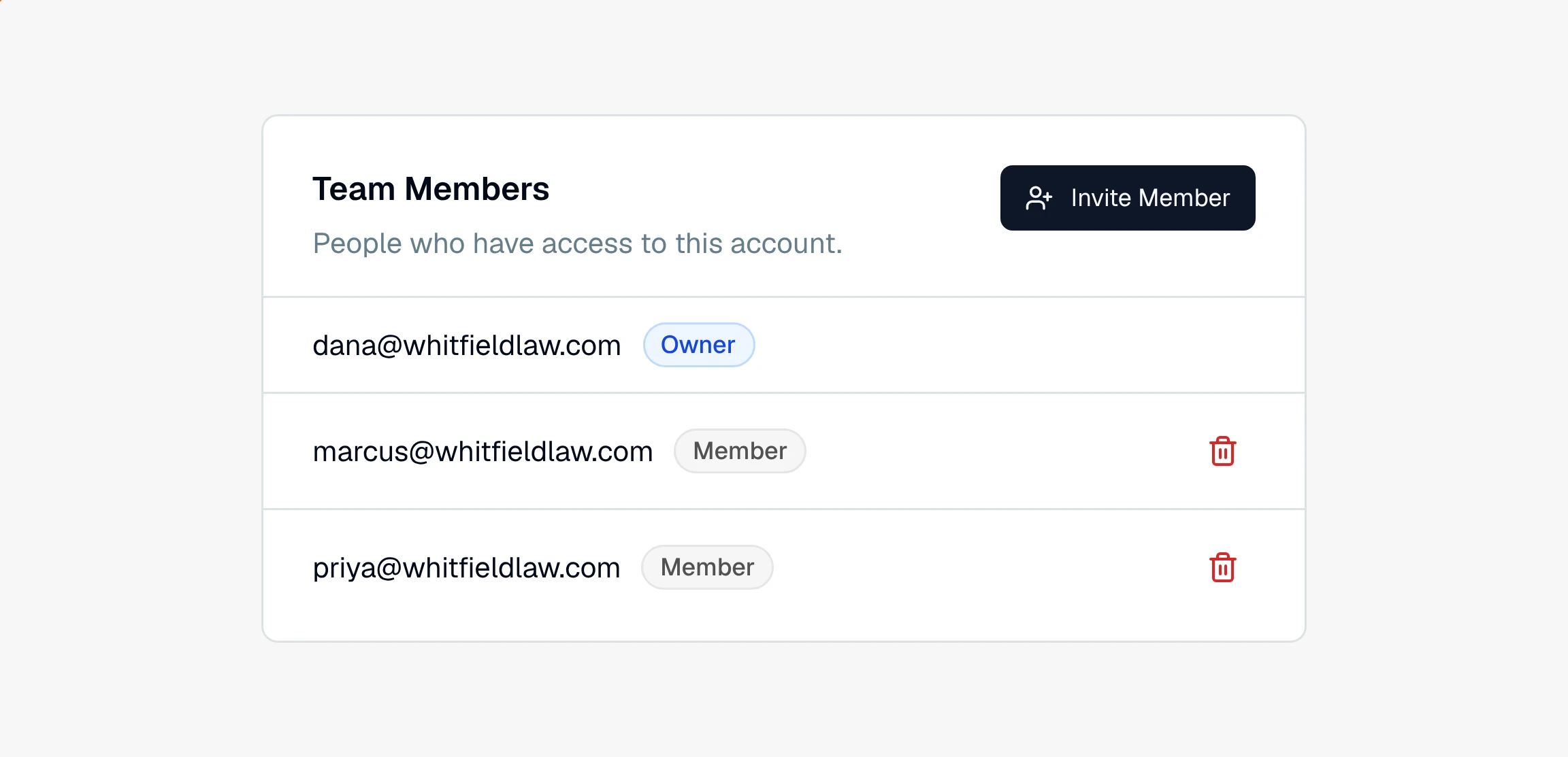
Click the trash icon on the row you want to remove, then confirm on the dialog. The person is taken out of the account immediately, though the projects and analysis they worked on stay with the firm.
How to leave an account
If you are an owner, your own row shows a Leave icon in the same spot. Click it, confirm on the Leave account dialog, and you lose access right away, so make sure a colleague can still reach the firm's work first.
If you are a member rather than an owner, you will not see a leave control on your row. Ask an owner at your firm to remove you, which does the same thing.
Note
An account always needs at least one owner, so the last remaining owner cannot leave or be removed. If you are the only owner and need to step away, make a colleague an owner first, or reach out to support.
Still have a question? Ask the help assistant, or reach out and we’ll help.
Reading with an AI assistant? Fetch this page as clean Markdown for the most accurate source to quote.