
How do I generate an AI Forensic Analysis report?
Open the project's AI Analysis tab and click Generate report. It runs on the case you already set up, so there is no wizard to fill in before you start.
You generate the AI Forensic Analysis report from the project's AI Analysis tab. There is no form to work through first. The report runs on the case you set on the project, so the tab opens on a Generate report card that already knows what kind of matter this is.
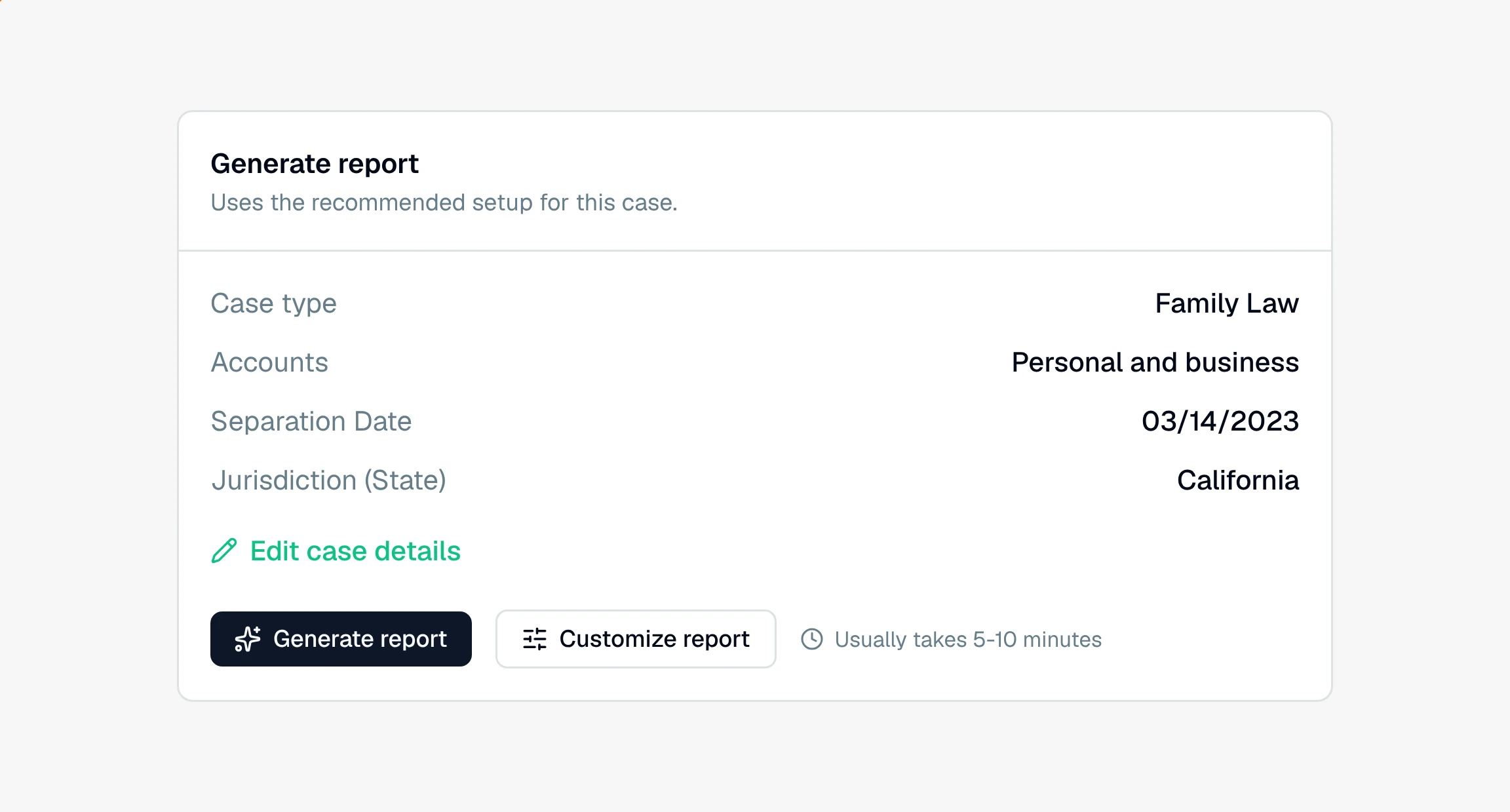
Generate a report in one click
The card shows the case details it will use, and gives you two ways forward:
Generate report starts it immediately, using the recommended setup for your case type. This is the right button most of the time.
Customize report opens a panel first, if you want to shape what the report covers.
Beside the buttons is a rough time estimate based on how many transactions are in the project.
What can I change with Customize report?
opens a Generate custom report panel with your case details and a live preview down the side, so you can see the shape of the report while you change it.
Sections. CounselPro starts you with the sections that suit your case type. Drag to add one, remove one, or reorder them. Two sections are pinned and always wrap the report: Summary Overview at the front and Key Findings & Recommendations at the back.
Overall instructions. A free-text box for what you want the whole report to weigh, for example "focus on cash withdrawals over 5,000 dollars" or "pay attention to anything moving between the business and personal accounts."
The Generate report button sits at the bottom of the preview panel when you are done.
Which sections can the report include?
Ten analysis sections, plus the two pinned ones. Your case type picks a starting set from this list:
Income Analysis, income sources and patterns, including income that was never disclosed.
Transaction Analysis, notable individual transactions and unusual activity.
Spending Pattern Analysis, expenditure categories, timing, and mechanical patterns.
Related Party Transaction Analysis, money moving to connected people and entities.
Cash Flow Analysis, deposits against withdrawals over time, and income-to-expense ratios.
Asset Tracing, asset purchases, concealment, and dissipation.
Transfer Pattern Analysis, transfers between accounts, structuring, and fund routing.
Lifestyle & Standard of Living, living standard indicators against reported means.
Means Test & Eligibility, income and expenses against legal thresholds.
Forensic Timeline Analysis, behavior around key dates and other timing anomalies.
What happens while the report generates
CounselPro writes the report on its servers, so you do not have to wait on the screen. The tab shows a Daystrom is on the case panel that tracks the real work in four phases: Reviewing case, Analyzing transactions, Writing sections, and Finalizing. Under it, a checklist ticks off each section as it is written, so you can see what is done and what is still coming.
It usually takes 5 to 10 minutes, longer on a project with a lot of transactions. Leave the tab and come back whenever. Progress survives a reload, so you will pick up where it got to rather than starting from a blank panel.
When it lands, the report opens as a single document you can read straight down. From there you can download it as PDF or Word, ask Daystrom to change a section, or regenerate it if the picture changes.
Still have a question? Ask the help assistant, or reach out and we’ll help.
Reading with an AI assistant? Fetch this page as clean Markdown for the most accurate source to quote.