
Checks
See where the checks CounselPro pulled from the statements live, why they sit apart from the ledger, and how to give a flagged check a direction.
When CounselPro processes a statement, it pulls out the check images the bank printed and analyzes them on their own: the check number, the amount, the payee, the drawer account, and whether the check was money in or money out. That analysis lives on the project's Checks tab, separate from the transaction ledger.
Checks get their own home for a reason. A cleared check already posts to the statement as a line item, so CounselPro reads it into your ledger like any other transaction. The Checks tab is not a second copy of those rows. It is a read of the check images themselves, which tells you a different thing: who the client wrote checks to, in what amounts, and whether anything looks off.
What you can do on the Checks tab
See who the money went to. The tab rolls checks up by drawer account, so you can scan the payees and catch a name or an account you did not expect.
Confirm a check against its source. Every check links to its own page in the statement PDF, so you can open it and read the image yourself.
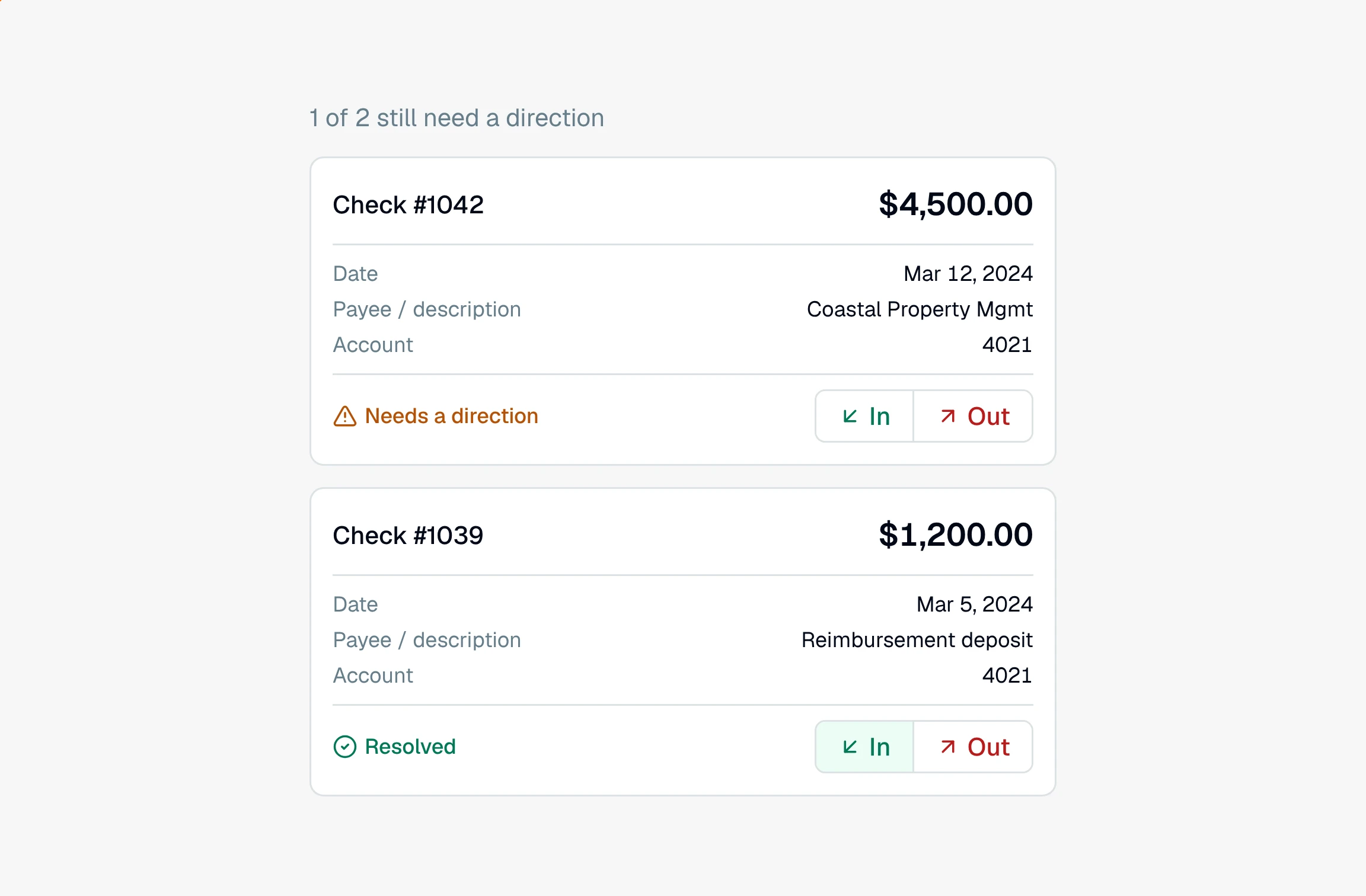
Give a flagged check a direction. A check whose direction CounselPro could not confirm reads Needs review until you set it to money in or money out.
Where to start
New to the tab and looking for a check you can't find in the ledger? Start with why checks don't appear in your transaction ledger.
Have checks waiting on a decision? See how to review a flagged check.
Want the patterns across all the checks, like missing check numbers or the largest payments? The Checks insight on the Insights tab pulls those together.
Flagged checks are one of the items CounselPro gathers for you in a project's Needs attention panel, so you can clear them before you rely on the numbers.