
Insights
Check statement coverage, track income and spending by category and merchant, and find the transactions worth a second look.
Insights is where a project stops being a pile of statements and starts answering questions on its own. It reads every processed transaction and lays the money out the way an investigator would want to see it: what came in, where it went, what looks off, and whether you are even holding a complete record. You do not have to ask for the common views. They are already built.
The power is that it turns thousands of scattered lines into a few honest numbers. A client's own statements will tell you almost everything, but only if someone reads all of them and adds them up the same way every time. Insights does that reading. It joins the spellings of one merchant into one total, separates money in from money out, and lists the largest and the one-off payments a manual review would take days to surface. When a number here does not match what your client swore to, you have a lead worth chasing.
It is also careful with the truth. It leaves internal transfers between a client's own accounts out of the income and spending totals, and the Income view splits each month into money from outside and money that came from another account in the project, so money shuffled from savings to checking is not read as income. And it keeps checks on their own tab so a cleared check is not double-counted. The totals reflect money that actually entered or left the client's hands.
What insights does CounselPro show?
Open a project and click the Insights tab. It lands on Coverage. The views fall into two groups.
Ready the moment a project has data:
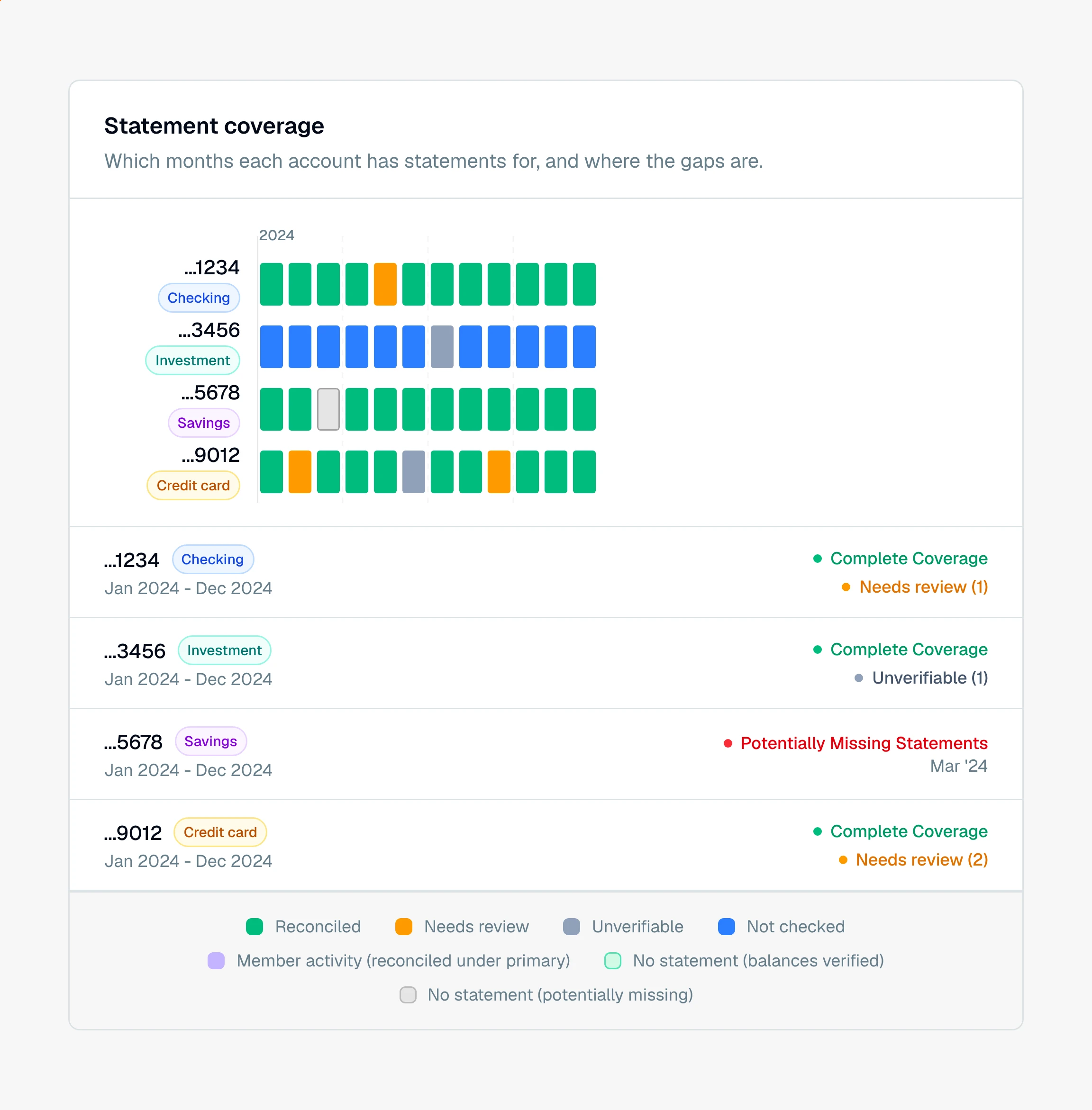
Coverage, one row per account and one column per month, so a missing statement shows up as a hole you can see. See how to check for coverage gaps.
Categories, money in and money out broken down by spending category.
Reconciliation, whether each statement's balances tie out, cycle by cycle. This one is on the Premier plan and single projects. On other plans the tab reads Statement cycles and lists the cycles without the balance check. See what reconciliation does.
Built when you click Generate Insights, because they need a full pass over the transactions:
Income, monthly income with a cumulative trend, the fastest way to spot unreported income.
Merchants, money in and money out for each business, with name variations bundled into one total.
Anomalies, the largest rows and large one-off payees, round-number amounts, and weekend activity, the unusual transactions worth a second look.
Checks, payees, sequence gaps, and check totals.
Duplicates are not a tab. Likely duplicate transactions and repeated PDF pages live on one page you open from the project's Actions menu, under Possible duplicates.
Why the second group waits for a button is covered in what "Generate insights" does.
How do I use insights to work a matter?
Read them in the order an investigation actually runs:
Start with coverage. Before you trust any total, confirm you are holding every statement. A low income month is often just a missing statement, so this gates everything else.
Clean the data. Open Possible duplicates from the Actions menu and clear duplicates and repeated pages so an overlapping statement or a scanner double-feed is not quietly inflating the numbers.
Follow the money. Read Income for what came in, then Categories and Merchants for where it went and the real total paid to any one business.
Hunt the outliers. Anomalies and Checks are where the leads hide: a round-number transfer, a weekend wire, a gap in the check sequence.
Ask for the rest. When a question falls outside the fixed views, hand it to Daystrom, which reads the same data and answers in plain English.
Insights refresh on their own after you add statements to a project that already has them, so you rarely rebuild by hand. See when insights update.